
Upload a job description
Turn a pasted JD or a PDF, DOCX, or TXT file into a SARAL search.
If the brief already lives in a file, do not retype it. Use JD Search on the home page.
Open JD Search
Open JD Search, stay on Paste JD, and drop in the full description. Include the role, skills, experience, and location.
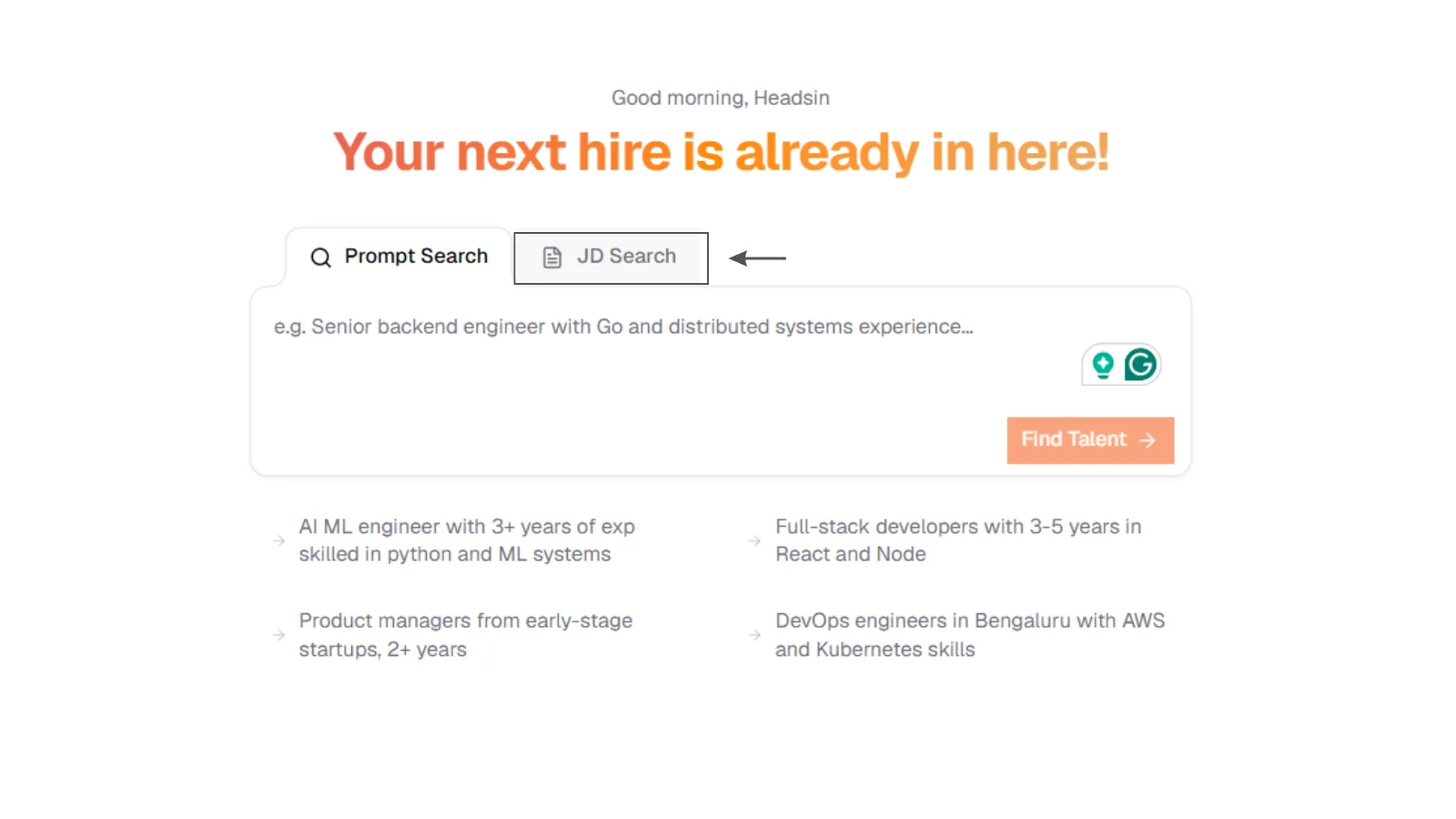
1. Open JD Search
SARAL JD Search tab on the home page with Paste JD and Upload File options.
1. Open JD Search
SARAL JD Search tab on the home page with Paste JD and Upload File options.
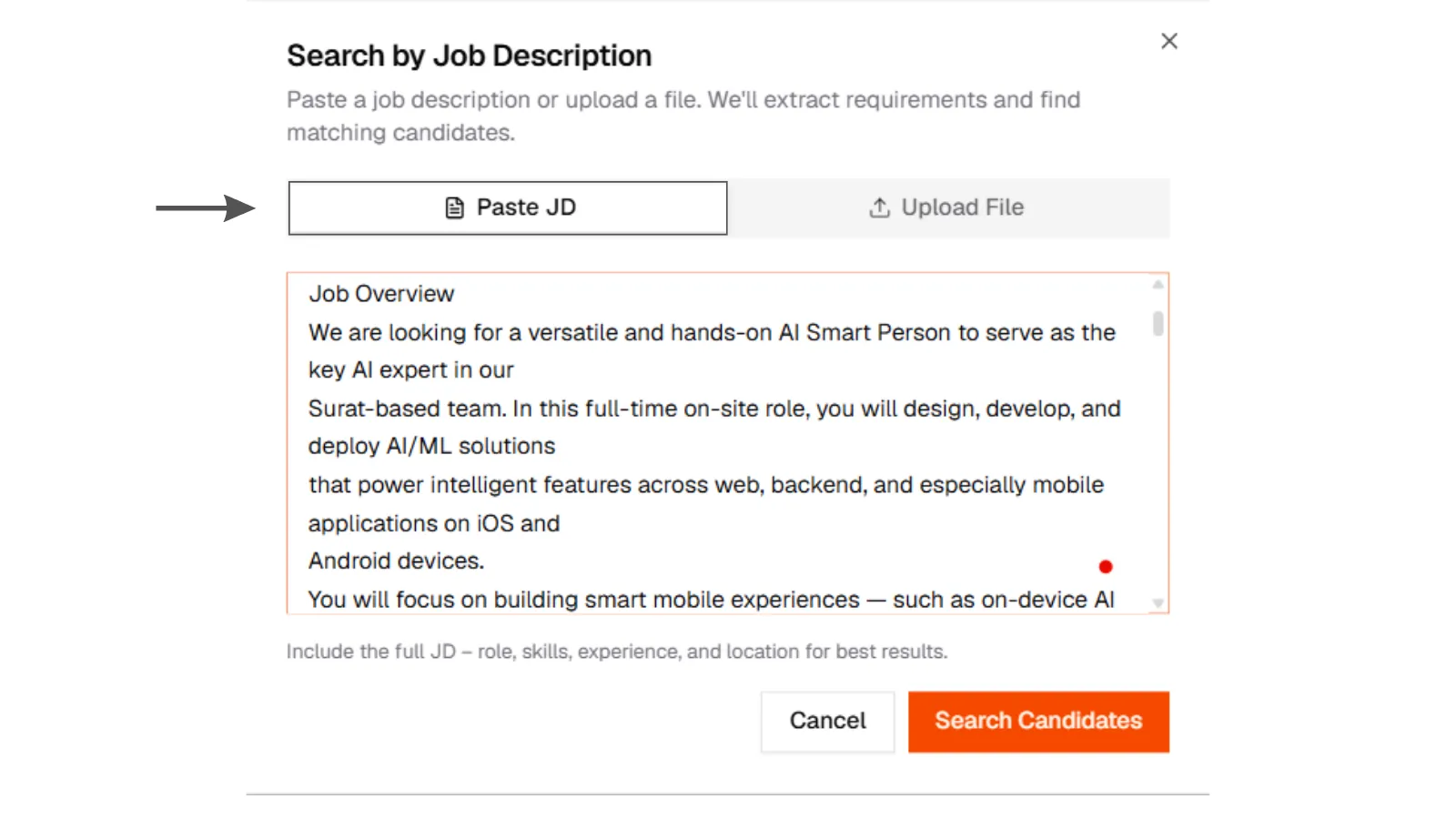
2. Paste or upload
JD Search modal with a pasted job description or an uploaded PDF, DOCX, or TXT file.
2. Paste or upload
JD Search modal with a pasted job description or an uploaded PDF, DOCX, or TXT file.
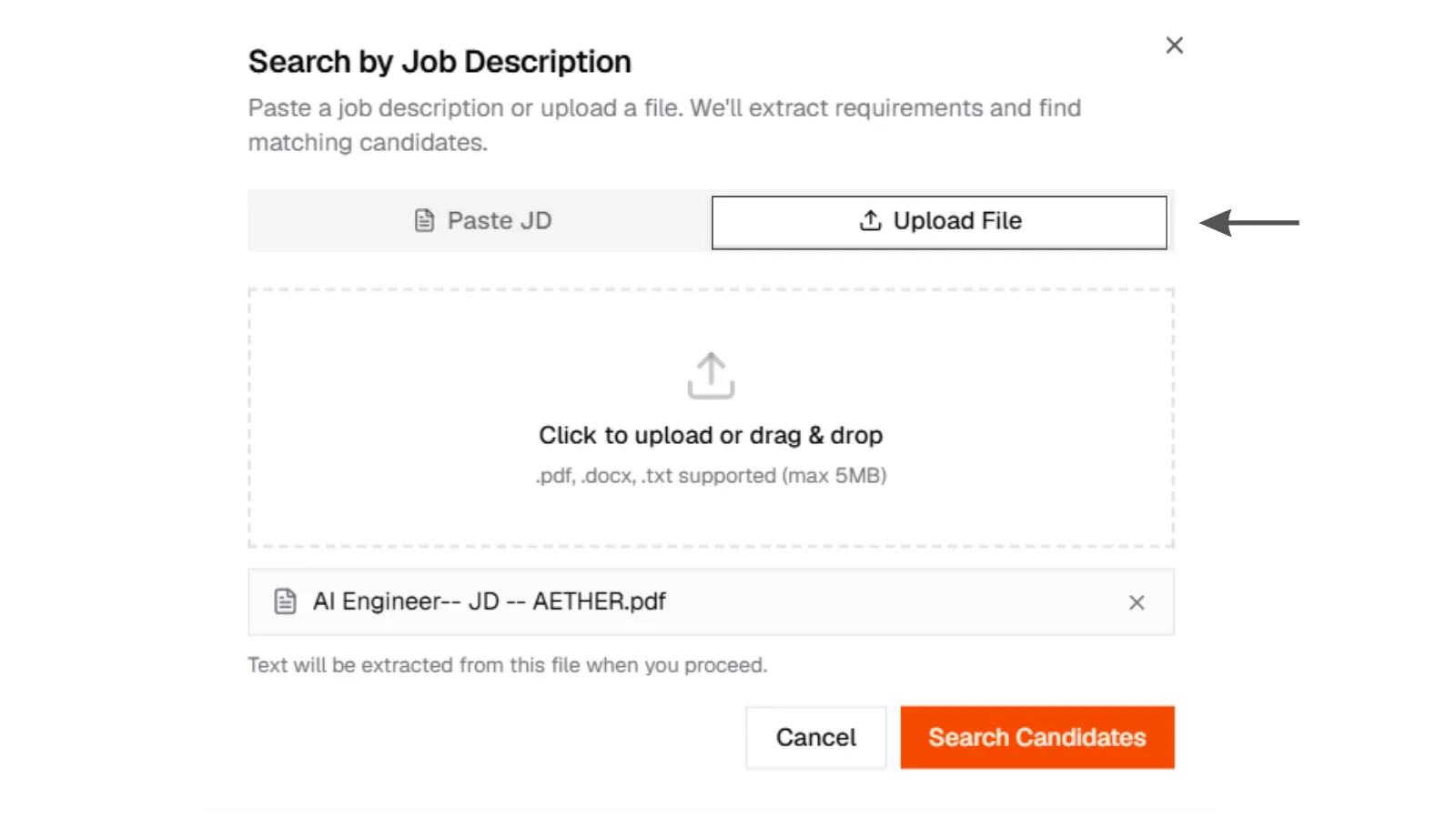
3. File upload preview
JD Search file upload selection screen.
3. File upload preview
JD Search file upload selection screen.
Review the filters
You land on Review your search. Fix city and seniority before you click Search. A long JD will ask for everything. Cut it down to the role, the range, the city, and two must-haves.
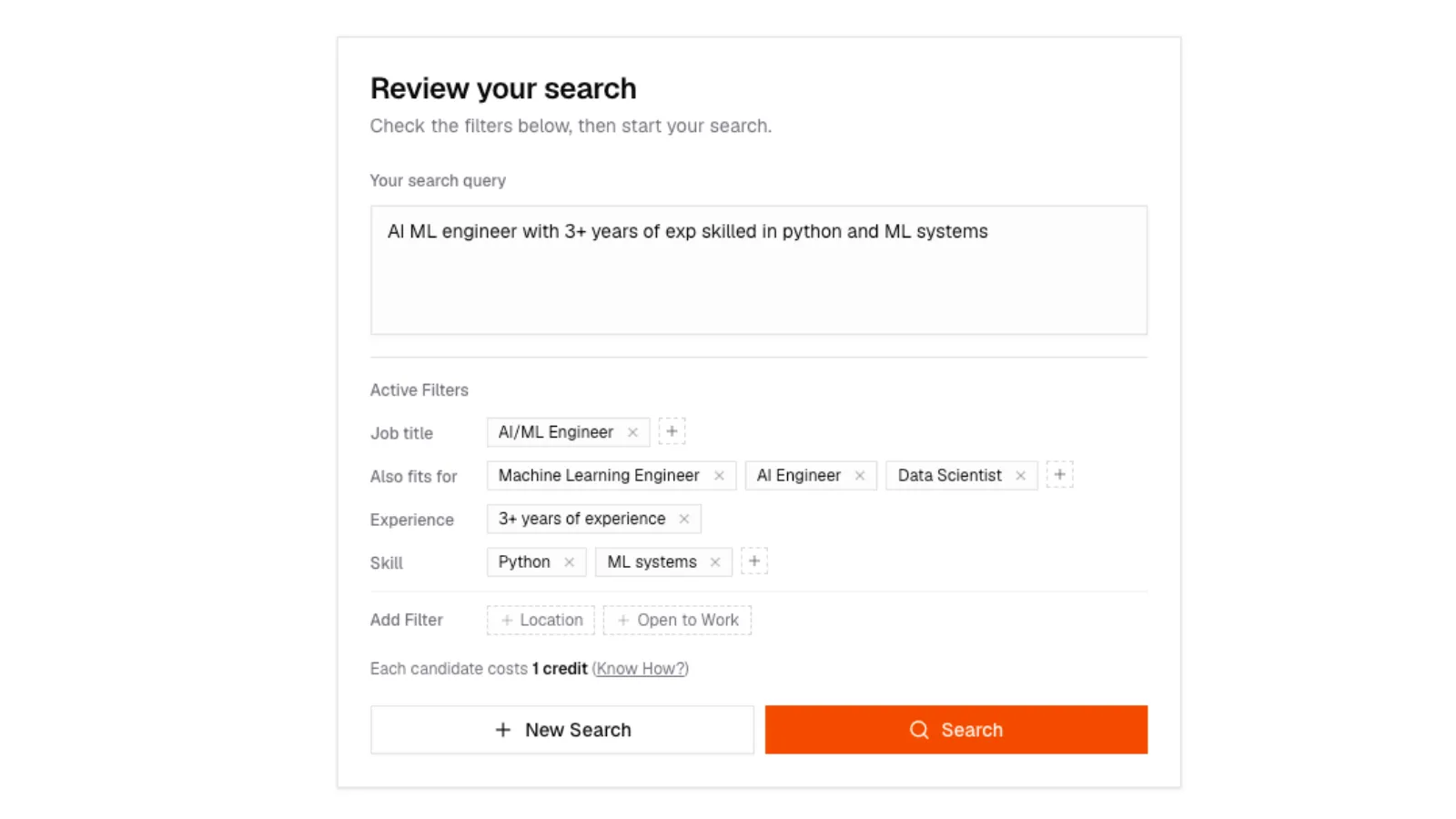
4. Review extracted filters
Review your search screen after a JD upload, with Active Filters chips extracted from the file.
4. Review extracted filters
Review your search screen after a JD upload, with Active Filters chips extracted from the file.
Search
From here it is a normal search. Results, scores, shortlists, and credits work the same way.
A 2,000-word JD will ask for everything. After extract, edit Active Filters so the search still has a point of view. Great briefs are short on purpose.
You can also start from a job that already lives in your ATS. That is ATS jobs.