
Filters
Tighten a list with the Filters popover, or run a clearer brief.
The best refinement is a clearer sentence. The Filters button helps you look at a list you already have. It does not replace a better brief.
Change the words first
If the top of the list is close but wrong, edit the query and run again. Keep the first search. It is in All Searches. Compare the two.
| The list is | Try |
|---|---|
| Too junior | Add 5-8 years or senior |
| Too managerial | Add individual contributor and a hands-on skill |
| Right skills, wrong industry | Add SaaS or manufacturing as a must-have |
| Right everything, wrong city | Name the city. Location is strict. |
| Too narrow | Drop a tool. Keep the role and city. |
What Filters actually does
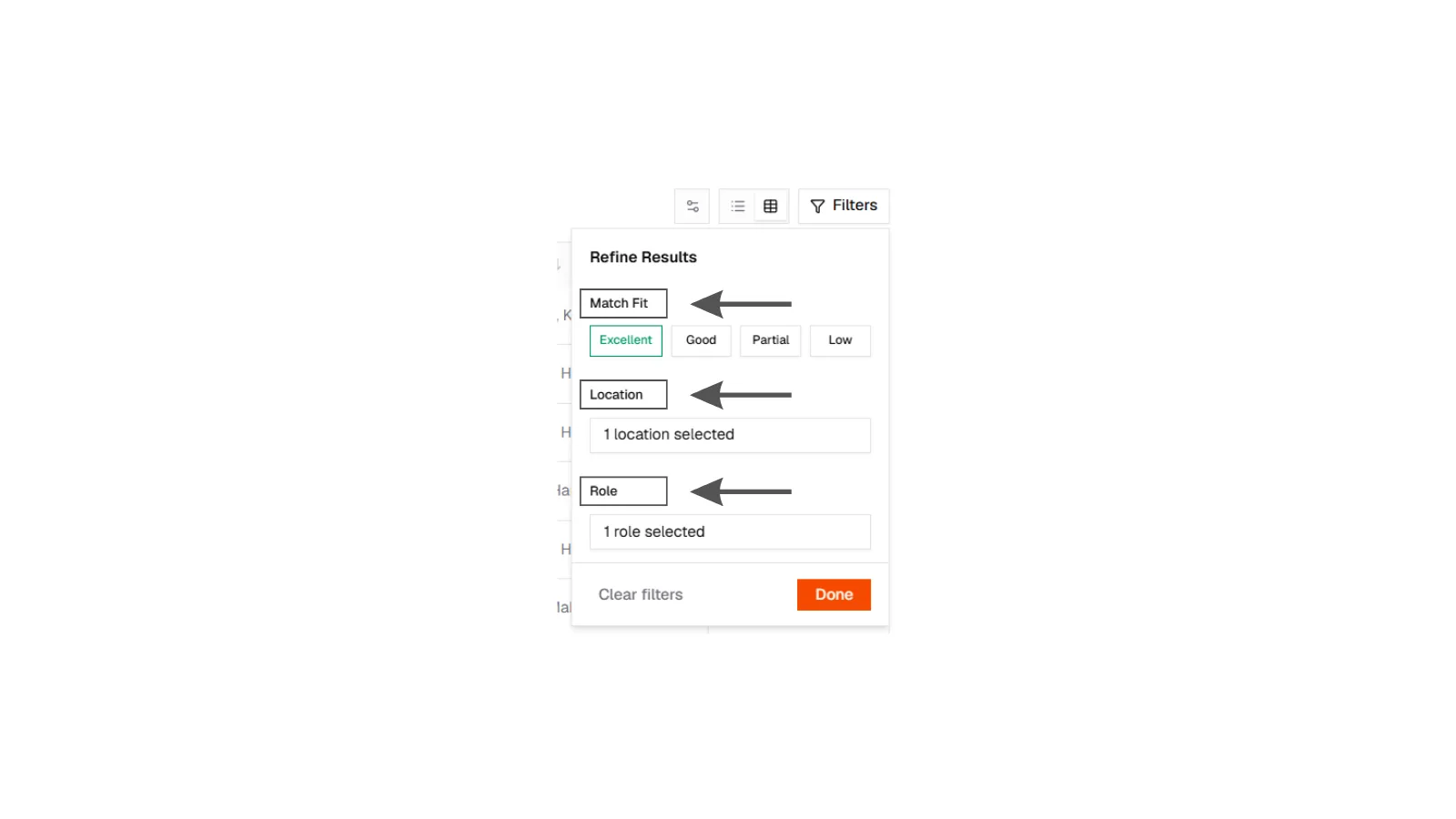
On results, open Filters. You can keep people by:
- Match Fit (Excellent, Good, Partial, Low)
- Location
- Role (titles on the current page)
There is also a search box on the results toolbar, and a shortlisted switch for people you starred on this search.
Results toolbar
Search results toolbar showing Filters (Match Fit, Location, Role), a shortlisted-only control, view toggle, and column picker.
Results toolbar
Search results toolbar showing Filters (Match Fit, Location, Role), a shortlisted-only control, view toggle, and column picker.
Sort (column headers) is the same people in a different order. Useful when you want everyone in Pune visually grouped after you already searched Pune.
Load more
When you want another page of people, load more on the same search. Extra people append. You do not lose your place, and you do not pay twice for someone already on the list.
Do not refine by unlocking
Unlocking contact details does not make someone a better match. Score first. Contact second. Outreach third.